
Modernizing Navigation
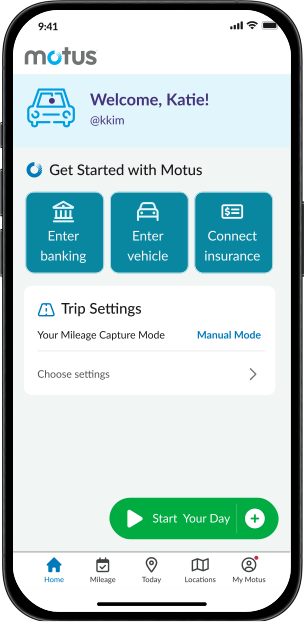
Simplifying Navigation with a Modern Bottom Nav
Motus is the industry leader in the vehicle reimbursement space, accountable for tracking 290M miles per month and disbursing over $2B in reimbursement annually. The Motus app is designed to track mileage for employees who use their personal vehicles for work.
① PROBLEM STATEMENT & GOALS
A B2B2C app its own users had outgrown
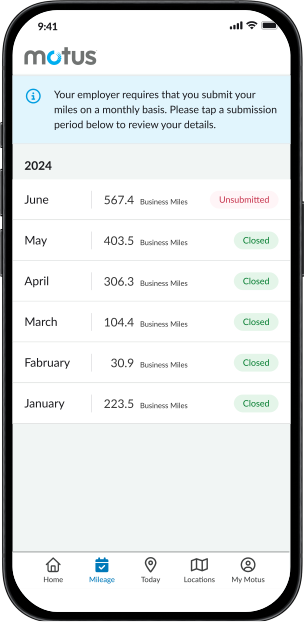
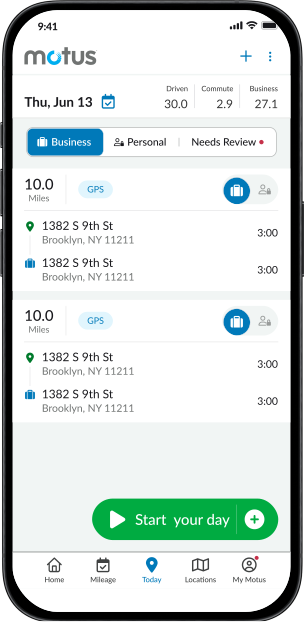
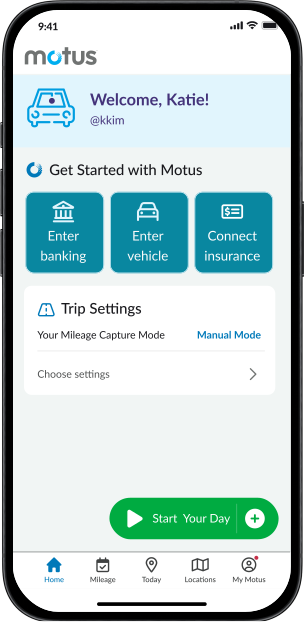
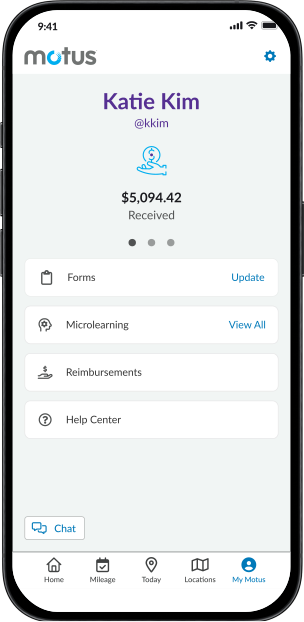
As a B2B2C product, the Motus app and its end users had long been overlooked. However, with new competitors entering the market, we began losing clients and deals. This revealed a critical issue—our app lacked the modern look, feel, and usability expected of a market leader. To address this, I led a complete redesign focused on not only refreshing the UI, but also improving the overall user experience for our 300,000 drivers.
② RESEARCH
Three pain points that reframed the scope
User Interviews
To gain deeper insights into the current user experience, I conducted exploratory interviews with drivers across various industries, including healthcare and construction. The goal was to understand how frequently they make personal trips during their workday and how they interact with the app when these trips occur. These interviews provided valuable context on user behaviors, pain points, and opportunities for improvement.

④ FEEDBACK
Pressure-tested by admins, not just users
Throughout the design process, I gathered feedback from a diverse group of stakeholders, including the CPO, Product Owner, Product Manager, Tech Leads, and Development Team. Most of the discussions focused on ideation and edge cases, ensuring the final design accounted for various user scenarios.
Admin Feedback
I had the opportunity to share prototypes with admins who manage the Motus program on behalf of their companies. While they do not use the app firsthand, they frequently assist end-users with troubleshooting and support. Their insights helped identify common pain points and areas for improvement. Key feedback that has been added to the UX backlog includes:
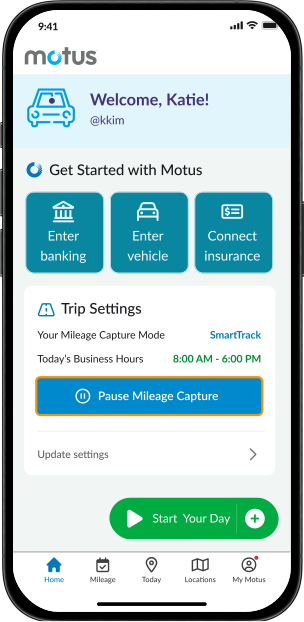
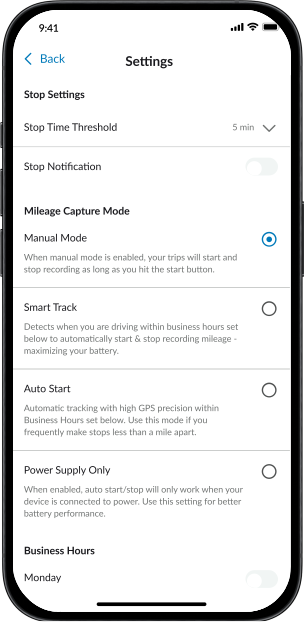
01. Prompt users to select a mileage capture mode: during the onboarding process, we should have users select a mode, instead of defaulting to one option.
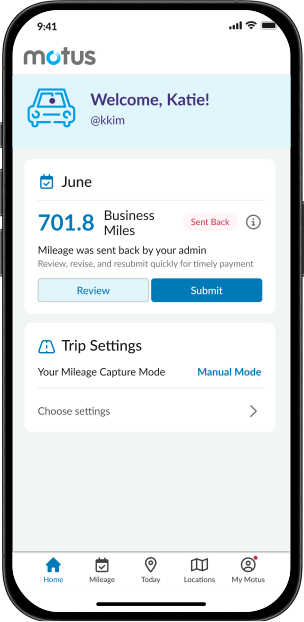
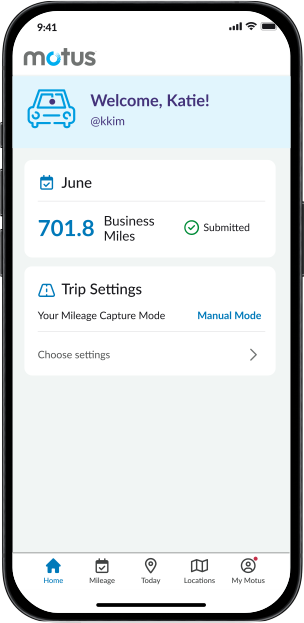
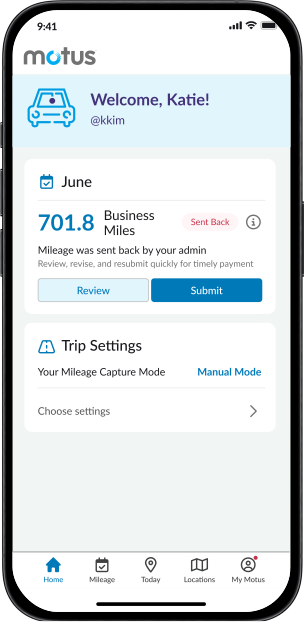
02. Require users to review their mileage before submission: to ensure users are updating their mileage and only submitting eligible business trips.
03. Introduce a compliance dashboard: Display the user’s compliance status based on IRS guidelines to reduce questions and frustration at the end of the year when taxes are applied.
Tech Feedback
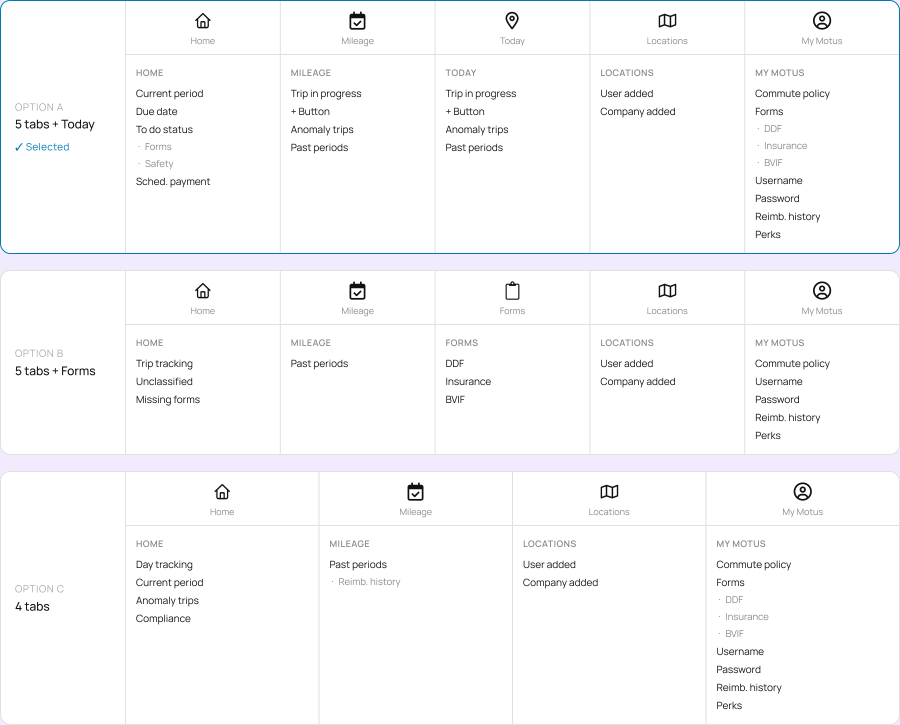
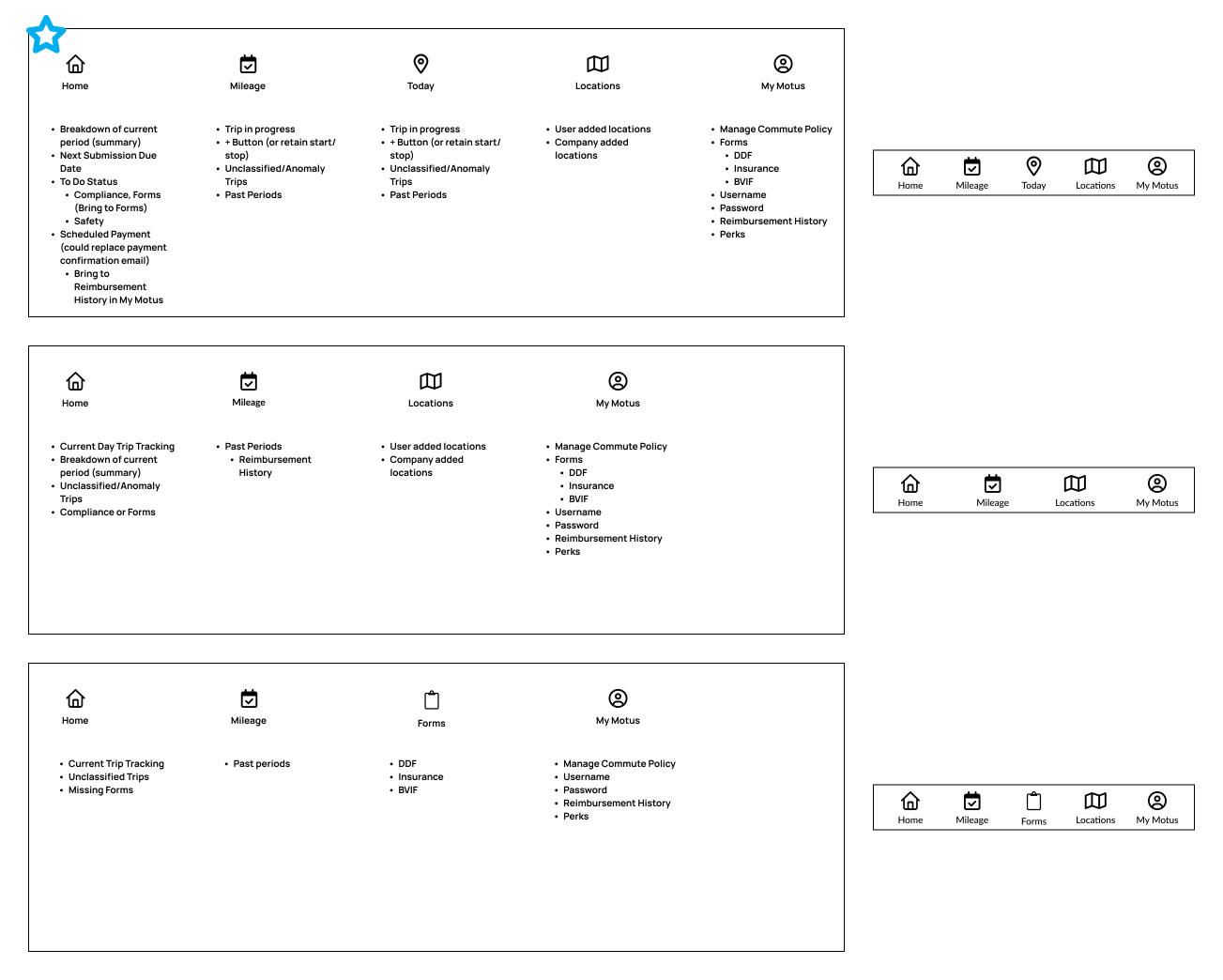
Through grooming sessions, the development team provided valuable input on edge cases and technical feasibility. Their feedback helped refine the navigation structure and interactions to ensure seamless implementation. By incorporating these technical insights early in the process, we ensured the final design was both user-friendly and feasible for development.
⑤ KEY RESULTS
Research that changed the roadmap
Roadmap Justification
Initially, I worked on this initiative independently, preparing for improvements in the second half of 2025. However, through user interviews and ongoing communication with leadership, it became evident that the app had critical usability gaps that needed to be addressed.
As a result of these user pain points surfacing during research, leadership decided to reprioritize this initiative over a previously planned growth initiative. My research and prototypes demonstrated:
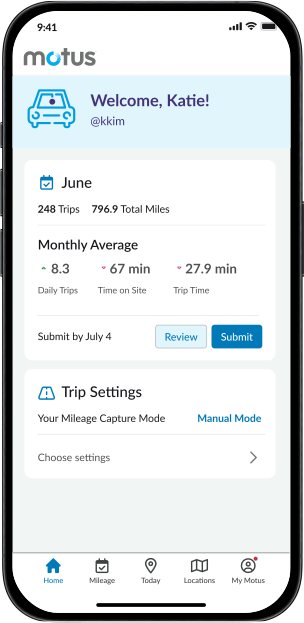
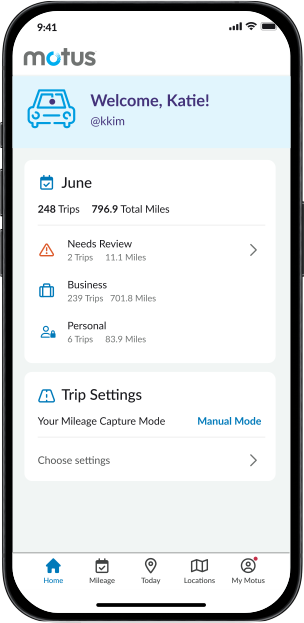
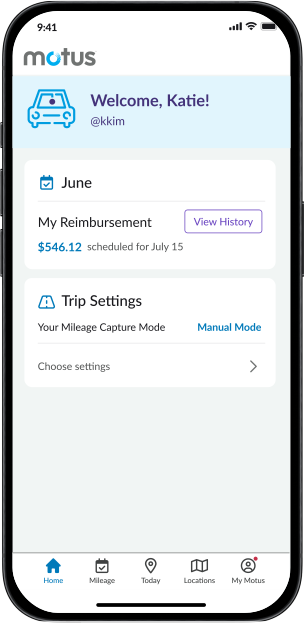
01. Improved app navigation: introducing a home screen would create a more intuitive user experience.
02. Modernized app layout: A more structured app layout would allow Motus to seamlessly introduce new features and drive adoption.
03. Addressed Usability Concerns: By addressing user pain points, Motus would improve user satisfaction and help retain clients in an increasingly competitive market.
By advocating for these changes through research, I was able to influence strategic priorities and align design improvements with business objectives.